JUMiNGO - worldwide express shipping

Connect quickly, easily and free of charge with JUMiNGO now

OUR BILLBEE INTEGRATION

EASY CONNECTION
EFFECTIVE INTERFACE
AUTOMATED PROCESS

With the free Billbee Integration, you have the opportunity to automatically add package templates as well as shipping rates. This allows you to individually determine whether the cheapest or fastest rate should be selected and which shipping service should be used for delivery.

Ship your products with JUMiNGO always at the best price-performance ratio. Try it out right away and save time and costs with the Billbee Integration on your next shipment.

      GENERAL FUNCTIONALITY

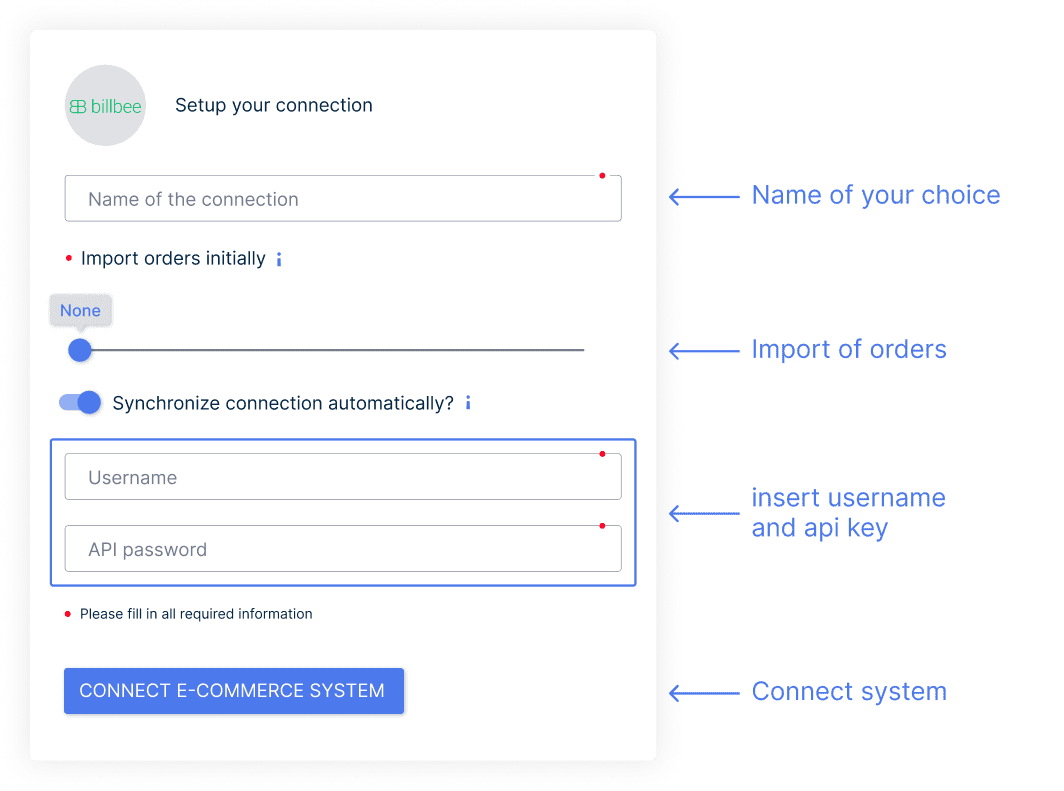
      The integration of Billbee with JUMiNGO opens up a variety of possibilities to increase efficiency in shipping management:

      • Direct connection to the Billbee API (simple authorization with API credentials)

      • Choice between manual and real-time synchronization

      • Selection of initially imported open orders for first-time synchronization (last day, 2 days, 7 days, all)

      • Import of address data of the recipient, shipment data (including customs data) and total weight of the shipment

      • Automatic synchronization of the tracking number back to Billbee once a shipping label has been created as well as an update of the order status

      • Additional optional functions for even more flexibility

          MAXIMIZE YOUR SHIPPING WITH BILLBEE

          The Billbee integration proves to be extremely beneficial thanks to two extremely useful functions that can be easily integrated. We'll explain which functions these are and show you how they sustainably improve your workflow and save you time and costs when shipping.

          1. Automatically add packaging templates

          Every JUMiNGO shipment requires complete package specifications (weight, length, width, height) so that the correct costs for a shipping rate can be determined and the shipment can be booked.

          You can store your standard package dimensions for shipping in JUMiNGO and add the correct package type to your Billbee order via Billbee automation.

          When importing the new order into the JUMiNGO system, the total weight of the order as well as the packaging template data are then set.

              1. Step: Store standard package templates in JUMiNGO account
              arrow_drop_down
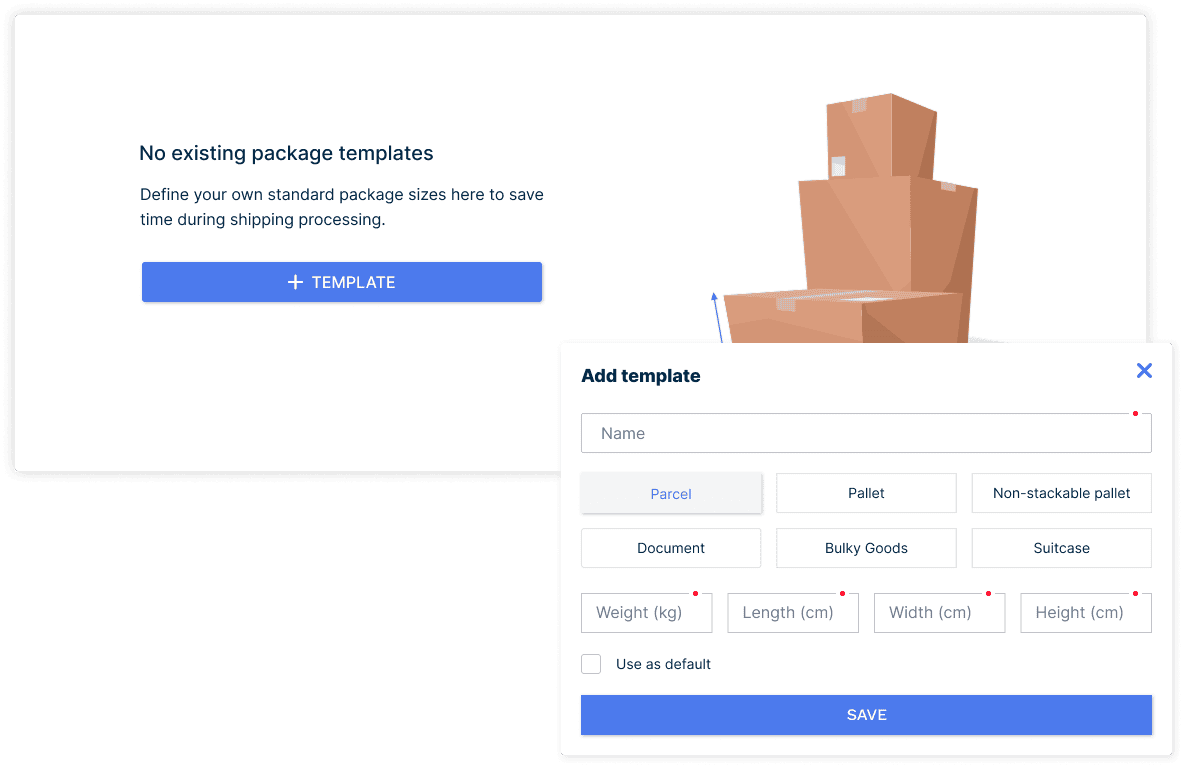
              1. First, you need to create the dimensions of your packaging in the JUMiNGO account once. Click on Shipping Tools in your account and then select Packaging Templates.

              2. Click on Add Template, give your standard packaging a meaningful name and select what type of packaging it is (e.g. package, document shipment, pallet).

              3. Now enter the standard dimensions. Please round the length, width and height to full centimeters. You can optionally specify a weight for the standard packaging. This makes sense if you want to store the weight of the packaging itself and/or the weight of filling material. The weight will later be added to the total weight of the Billbee order when importing a new order. If you already add the packaging and filling material weight to the total weight of the shipment in Billbee, please leave the weight field in the JUMiNGO packaging template empty.

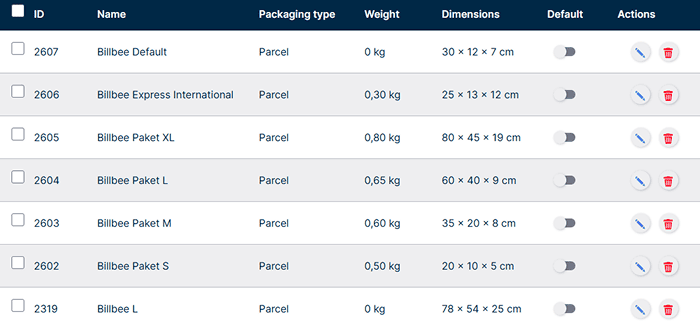
              4. Add all different packages in which you ship your Billbee orders this way. Each added packaging template gets its own ID. You need this in the next step:

              Billbee Package Templates EN.png

              2. Step: Create automation rule in Billbee
              arrow_drop_down

              In your Billbee account, you can set rules that perform certain actions when certain conditions are met. JUMiNGO uses this function to assign a JUMiNGO packaging template via order tags.

              1. Create a new rule in the Billbee backend. Select "Order imported" as the trigger.

              2. Then store your personal logic under conditions according to which you would define a specific packaging. Here you can use, for example, product weights and maximum product dimensions, or directly use the condition "Restrict packaging type" to specify that a specific Billbee package must be stored. Then select "Add tag to the order" as action.

              3. Enter jumingo_package_xxx as value and replace xxx with the ID that is displayed in your JUMiNGO account for the desired template.


              Example: If you want your order to be assigned the template Package S (ID = 12), enter the value jumingo_package_12 in the rule.

              241112_Integration_billbee_Screenshot_Erstens_Schritt2_Automatisierungsregel_Modul_E.png

              Please make sure that you only add one package template tag per order. The JUMiNGO system only considers the first tag. You can only use IDs that are displayed in your JUMiNGO account in the list of packaging templates.

              2. Automatically add shipping rates

              If you have already configured the automatic assignment of package templates, you additionally have the option to automatically add a shipping rate.

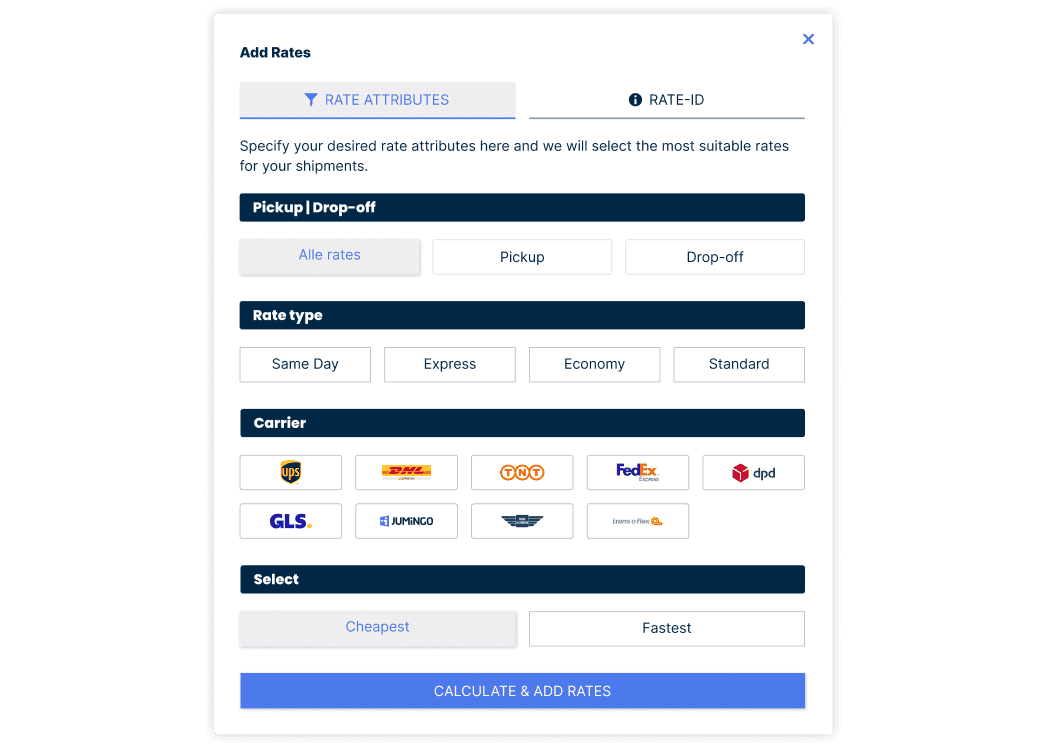
              You can either select a specific rate ID or have JUMiNGO determine a suitable rate (e.g. the cheapest rate or the rate with the fastest delivery).

              We have also compiled all ID tags in an overview that you can add to your Billbee orders. It doesn't get more flexible than this!

                  Option with specific rate ID

                  1. Step: Find suitable rate ID in shipping calculator
                  arrow_drop_down

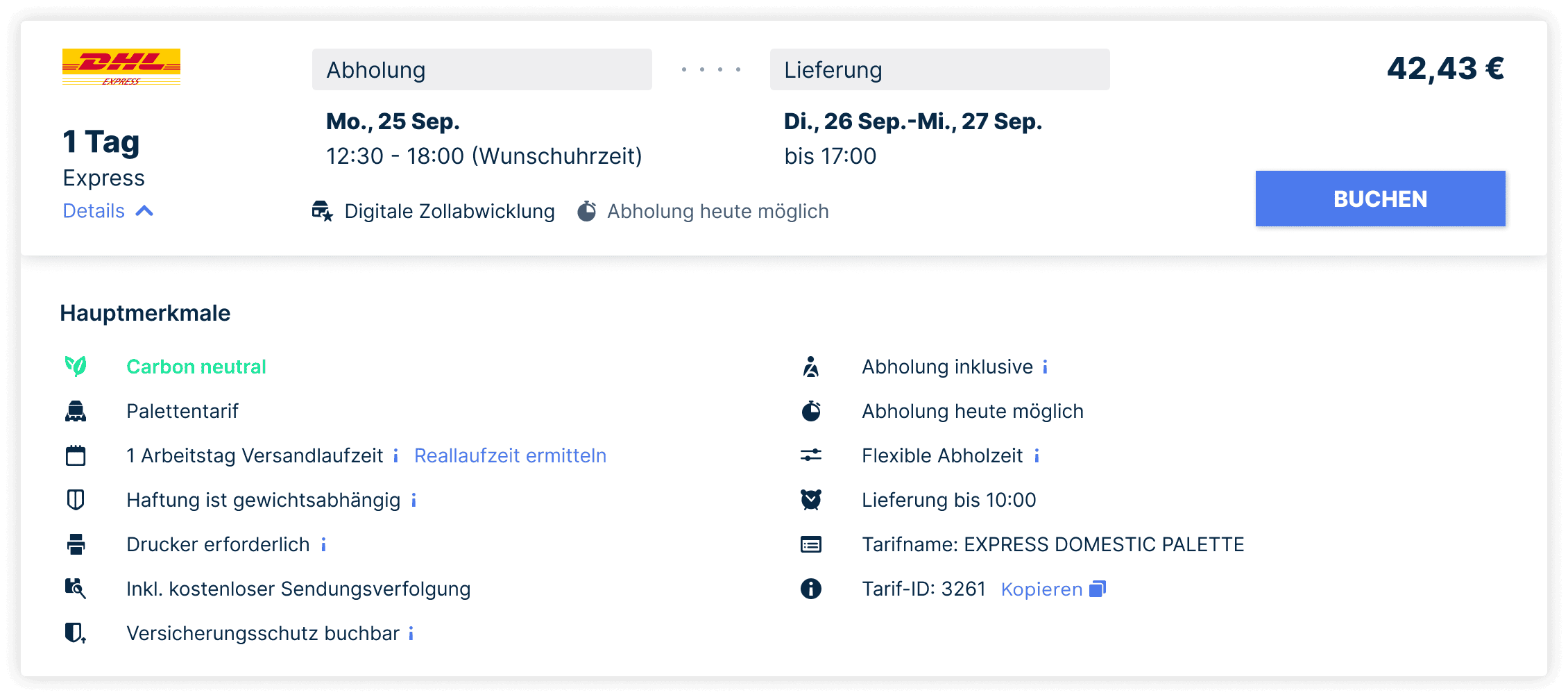
                  If you want to always book a fixed shipping service for express shipments to the USA, for example, first search for a suitable rate in the shipping calculator. Note the rate ID. You can find this in the expandable details in the rate card.

                  241112_Integration_billbee_Screenshot_Eindeutiger_Tarif_ID_Schritt1_Tarif_ID.png

                  2. Step: Create automation rule in Billbee
                  arrow_drop_down
                  1. Create a new rule in the Billbee backend. Select "Order imported" as the trigger.

                  2. Then store your personal logic under conditions according to which you would determine the rate. For the specific example from step 1, you would now set as a condition that the delivery country = USA must be.

                  3. Then select "Add tag to the order" as action. Enter jumingo_rate_xxx as value and replace xxx with the previously copied rate ID.

                  When a new order with delivery address USA is received, your desired rate ID will be added to the JUMiNGO shipment draft.

                  241112_Integration_billbee_Screenshot_Eindeutiger_Tarif_ID_Schritt2_Automatisierungsregel.png

                  Option with cheapest/fastest rate

                  1. Step: Determine desired rate profile
                  arrow_drop_down
                  1. First determine whether the cheapest or fastest rate is suitable for you.

                  2. For both options, you can optionally specify additional restrictions. For example, you can specify whether the rate should be selected from a specific shipping service provider or whether it should be a specific rate type.

                  3. For example, you could always choose the cheapest available UPS standard rate for orders to European countries abroad. For the calculation mode and for the optional filter options, you must then add a tag to the Billbee order in the next step.

                  2. Step: Create automation rule in Billbee
                  arrow_drop_down
                  1. Create a new rule in the Billbee backend. Select "Order imported" as the trigger.

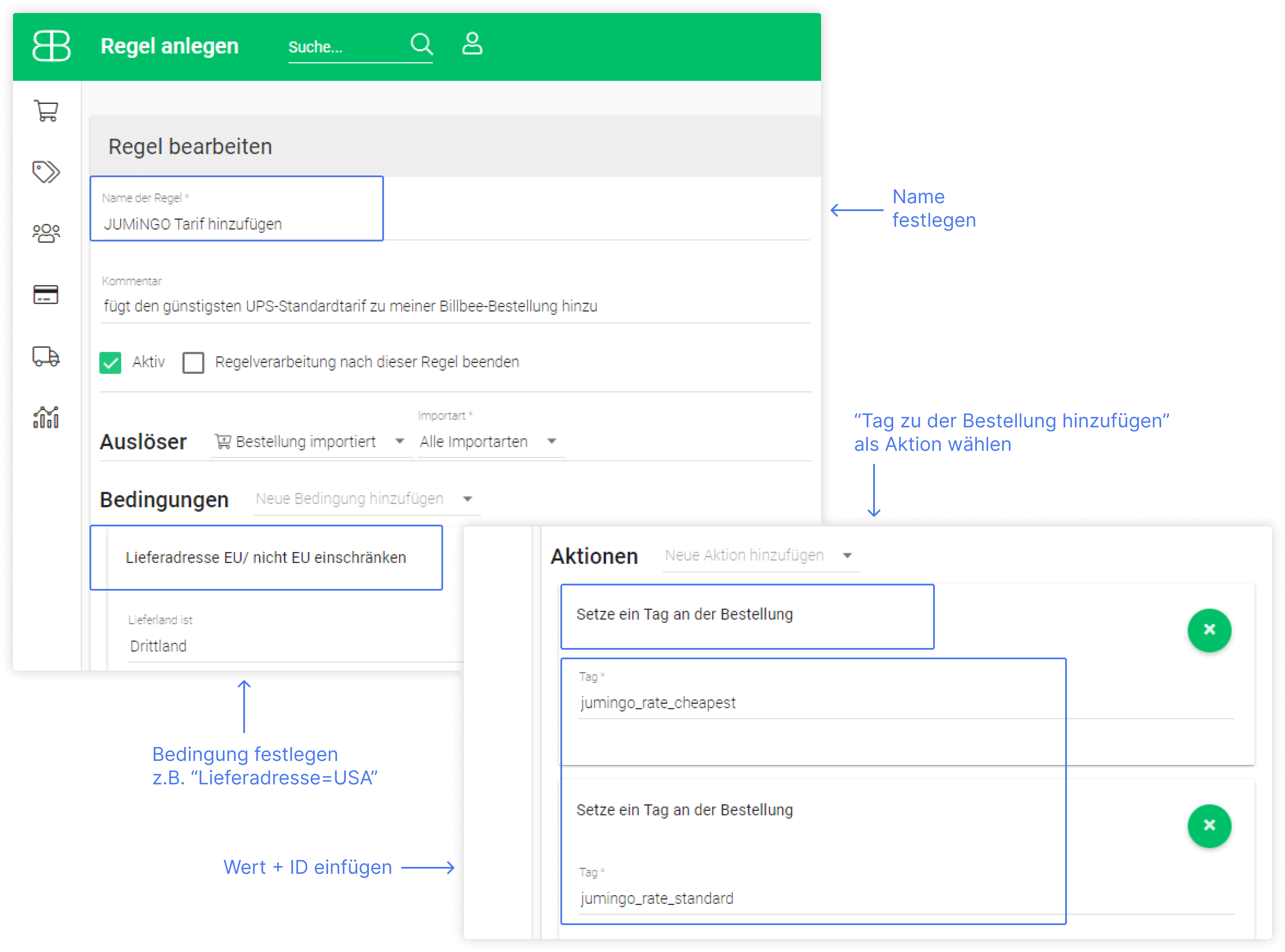
                  2. Then store your personal logic under conditions according to which you would determine the rate. For the specific example from step 1, you would now set as a condition that the delivery country = EU, but not Germany must be.

                  3. As action, you now have to add several tags to the order. For the example chosen from step 1, you must select the following tags:

                  • jumingo_rate_cheapest
                  • jumingo_rate_ups
                  • jumingo_rate_standard

                  When a new order with delivery address in EU abroad is received, and you have also added a packaging template per tag, then the shipment draft is automatically calculated with the cheapest available UPS standard rate after import.

                  Overview of filter options

                  1. Description and ID tag
                  arrow_drop_down

                  Filter option 1: Calculation mode

                  • Rate with the lowest price: jumingo_rate_cheapest
                  • Rate with the fastest delivery: jumingo_rate_fastest

                  Filter option 2: Shipping service provider

                  • UPS: jumingo_rate_ups
                  • DHL Express: jumingo_rate_dhl express
                  • FedEx: jumingo_rate_fedex
                  • TNT: jumingo_rate_tnt
                  • DPD: jumingo_rate_dpd
                  • GLS: jumingo_rate_gls
                  • JUMiNGO: jumingo_rate_jumingo
                  • DER KURIER: jumingo_rate_der kurier

                  Filter option 3: Rate type

                  • Standard: jumingo_rate_standard
                  • Express: jumingo_rate_express
                  • Economy: jumingo_rate_economy

                  Filter option 4: Pickup or drop-off

                  • Pickup: jumingo_rate_pickup
                  • Drop-off: jumingo_rate_dropoff

                  OTHER INTEGRATION OPTIONS

                  SHOPIFY INTEGRATION
                  Our Shopify integration enables you to efficiently and automatically process shipments with JUMiNGO.
                  LEARN MORE
                  WOOCOMMERCE INTEGRATION
                  Benefit from a powerful and automated connection with the free WooCommerce integration.
                  CONNECT NOW
                  SHOPWARE INTEGRATION
                  Save time and money by automatically importing all your shipments into your JUMiNGO customer account with our Shopware integration.
                  DISCOVER NOW
                  Homepage
                  chevron_right
                  Tipps & Tricks
                  chevron_right
                  Billbee
                  Products & Services
                  arrow_drop_up
                  Get a QuoteTrackingHelp Centre
                  Company
                  arrow_drop_down
                  Jobs & CareerTerms & ConditionsLegal noticePrivacy policy
                  Cookie-settings
                  Shipping within Europe
                  arrow_drop_down
                  Shipping to AustriaShipping to SwedenShipping to United KingdomShipping to FranceShipping to SwitzerlandShipping to SpainShipping to ItalyShipping to Poland
                  Worldwide Shipping
                  arrow_drop_down
                  Shipping to the USAShipping to ChinaShipping to AustraliaShipping to the UAEShipping to HongkongShipping to CanadaShipping to TurkeyShipping to India
                  Payment methods
                  Partners Network
                  4.6 out of 5 | 9872 Reviews
                  Copyright © 2025 JUMiNGO | All rights reserved.
                  linkedin_footer